in the previous post i discussed about embeding fonts .this way the size of word or power point documents increases . so there is one way besides other in which u can check the size of fonts that u wish to embed in your document
1. Click Start, point to Settings, and then click Control Panel.
2. Double-click the Fonts icon.
3. Right-click the font that you want, and then click Properties on the shortcut menu.
The size of the font on disk is listed in the Size row.
Friday, January 4, 2008

EMBEDING FONTS IN WORD OR POWER POINT DOCUMENTS
If u start using linux , then it becomes customary to abuse BILL GATES for every drawback or short-coming that we come across in WINDOWS or in MS OFFICE . One such draw back was maintaining fidelity in word document while using it on different systems.Luckily, the new Office 2007 provides an easy way to maintain the font styles used in a document (Word, PowerPoint, or Excel) even if the computer where you'll open it doesn't contain the fonts you used.
Here's how:
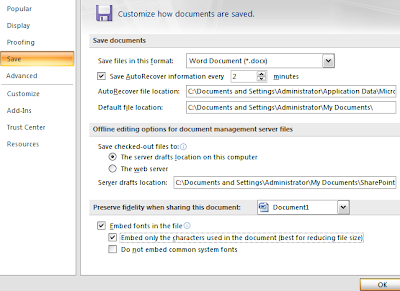
1. Click the Office Button (the round button on the upper-leftmost corner of the interface)
2. Select Word Options (or PowerPoint Options or Excel Options). A new window appears.
3. On the Save tab (on the left side), check the box with 'Embed fonts in the file'
4. Also check the box with 'Embed only the characters used in this document'
5. Click OK
6. Save your document and you're good to go.
Note You can embed only WAV formats in power point 2007 (WAV: A file format in which Windows stores sounds as waveforms. Such files have the extension .wav. Depending on various factors,one minute of sound can occupy as little as 644 kilobytes or as much as 27 megabytes of storage.) files in a presentation. All other sound formats will be linked, regardless of their file size. Also file size should be less than 50000 KB.
Here's how:
1. Click the Office Button (the round button on the upper-leftmost corner of the interface)
2. Select Word Options (or PowerPoint Options or Excel Options). A new window appears.
3. On the Save tab (on the left side), check the box with 'Embed fonts in the file'
4. Also check the box with 'Embed only the characters used in this document'
5. Click OK
6. Save your document and you're good to go.

Note You can embed only WAV formats in power point 2007 (WAV: A file format in which Windows stores sounds as waveforms. Such files have the extension .wav. Depending on various factors,one minute of sound can occupy as little as 644 kilobytes or as much as 27 megabytes of storage.) files in a presentation. All other sound formats will be linked, regardless of their file size. Also file size should be less than 50000 KB.
Thursday, December 27, 2007
Automatically run programs when starting Windows
If there are applications or commands that you run every single time you start your computer (Email comes to mind) you may want to consider setting things up so that these programs run automatically during the Windows XP startup. This can be done quite easily in XP by creating shortcuts and shuffling them around.
Here's how: Windows XP has a startup folder located at 'C:\ Documents and Settings\ (your user name)\ Start Menu\ Programs\Startup.' Shortcuts placed into this folder will be run automatically when Windows XP starts up.
Thursday, November 29, 2007
check orkut through RSS feed
With orkut being blocked in almost every school, college and office, it has become quite difficult to catch up with the latest scraps that your friends send to you. But many would say that there are loads of proxy sites to log into orkut but again are they safe? or do you trust your username and password being sent to google servers via these proxy sites? Atleast I don’t. So here is the safest way to do it. I m going to share a trick that you can use to check your scraps regularly without even signing into orkut.
First thing you need is your orkut uid (i.e. userID). To get your just go to your profile page and you will find something like this in your address bar.
http://www.orkut.com/Profile.aspx?uid=13907817624893311265
(Look for the numbers in bold, this is your uid!)
Now use this link http://www.indian-tv.com/orkut.php?uid= and replace the with your own . The full address will look something like this.
http://www.indian-tv.com/orkut.php?uid=13907817624893311265
And you are done just copy and paste the complete address in the address bar and see your scraps without even signing in! You can even add this address to your favorite RSS Feed Reader and read your scraps directly from it instead of using a proxy site for orkut.
First thing you need is your orkut uid (i.e. userID). To get your
http://www.orkut.com/Profile.aspx?uid=13907817624893311265
(Look for the numbers in bold, this is your uid!)
Now use this link http://www.indian-tv.com/orkut.php?uid=
http://www.indian-tv.com/orkut.php?uid=13907817624893311265
And you are done just copy and paste the complete address in the address bar and see your scraps without even signing in! You can even add this address to your favorite RSS Feed Reader and read your scraps directly from it instead of using a proxy site for orkut.
Sunday, November 25, 2007
Working proxy(ies) for Orkut, Myspace, Facebook, etc
here is a new list of proxies for various social networking sites. note -- all may not work with every networking site.............
- https://www.hairchip.com
- https://spacepiano.com
- https://cakebird.com/
- https://iceknock.com/
- https://junkblender.com/
- http://pmoder.info/
- http://smex.in/
- http://bowsnap.com/
- http://pagemod.com/
- https://cheeseglobe.com
- https://kitebroth.com
- http://backfox.com
- http://atunnel.com
- http://calculatepie.com
- http://bravebadger.com
- http://kproxy.com
- http://www.stupidcensorship.com
- http://www.vmathpie.com
- http://www.ipfaker.com
- https://www.technotapes.com/
- http://www.orkutproxy.in/
- http://62.193.235.46
- http://www.newbackdoor.com
- www.proxut.com
not all these sites can be blocked so chances are fair that it works
Saturday, November 24, 2007
Difference between COMMAND.COM and CMD.EXE?
As you probably know, MS-DOS was the predecessor to Windows. It was character mode only, and you ran programs by typing their name at the command prompt. MS-DOS was created when 16 bit processors were becoming popular, and its widespread adoption is credited with kick starting the rise in popularity of the personal computer.
Then two things happened: Windows, and 32 bit processors. Fast forward to today, and MS-DOS has pretty much disappeared from the landscape - Windows, and its rich graphical interface, is everywhere. The same is true for the 16bit processor. Most all contemporary machines are built on various flavors of 32bit processors.
What does all that have to do with COMMAND.COM and CMD.EXE? It's quite simple really: CMD.EXE is a command line processor for 32bit Windows. Much like MS-DOS before it, it provides a character-mode only user interface into which you can type commands to run programs. CMD.EXE is a 32 bit program that is fully a part of Windows - in fact it's what gets run when you select Command Prompt on the Windows Accessories menu.
COMMAND.COM, on the other hand, exists only for compatibility and 16bit programs. It exists solely for those programs which have not been updated since the days of MS-DOS. It's designed to run 16bit applications, and operates just like the old MS-DOS did.
On the surface, they're very similar. Even though CMD.EXE was a complete re-write, it's based on the same concepts and similar syntax. But the differences become quickly apparent. Let's used your "CD" example from above.
In CMD.EXE, you can change to the "Program files" directory by doing this:
cd "\Program Files"
Note the quotes around the directory name. Try doing that in COMMAND.COM and you'll get this:
cd "\Program Files"
Parameter format not correct - "\program
The problem is COMMAND.COM doesn't know about long file names (filenames longer than 8.3) or filenames that have spaces in them, and it doesn't have a way to quote the name. So if you still need to, how do you CD to that directory in COMMAND.COM? Well, first you need to find out the alternate, 8.3 name of that directory ... its short name:
dir /x
Directory of C:\
08/21/2005 09:50 AMPROGRA~1 Program Files
(I've removed some of the lines of output for brevity.) The "/X" parameter to DIR tells it to include the "shortname" in the output. In this case that's "PROGRA~1", a machine generated alternative name for "PROGRAM FILES". Now we can CD to that in COMMAND.COM:
cd progra~1
dir
Volume in drive C is
Volume Serial Number is B026-62CA
Directory of C:\PROGRA~1
08/21/2005 09:50 AM.
08/21/2005 09:50 AM..
03/24/2005 04:42 PMAdobe
...etc...
The bottom line is actually quite simple: use CMD.EXE unless you know you need COMMAND.COM for compatibility with some older 16bit program. And even then, if you try and run a 16 bit program in CMD.EXE, it will typically run it within COMMAND.COM for you anyway, so you still may not need to know or care.
And in case you're wondering, yes ... something similar is coming down the road as 64 bit processors begin to arrive. The 64bit version of Windows does, I believe, include another command processor, one for native 64bit command-line programs.
Then two things happened: Windows, and 32 bit processors. Fast forward to today, and MS-DOS has pretty much disappeared from the landscape - Windows, and its rich graphical interface, is everywhere. The same is true for the 16bit processor. Most all contemporary machines are built on various flavors of 32bit processors.
What does all that have to do with COMMAND.COM and CMD.EXE? It's quite simple really: CMD.EXE is a command line processor for 32bit Windows. Much like MS-DOS before it, it provides a character-mode only user interface into which you can type commands to run programs. CMD.EXE is a 32 bit program that is fully a part of Windows - in fact it's what gets run when you select Command Prompt on the Windows Accessories menu.
COMMAND.COM, on the other hand, exists only for compatibility and 16bit programs. It exists solely for those programs which have not been updated since the days of MS-DOS. It's designed to run 16bit applications, and operates just like the old MS-DOS did.
On the surface, they're very similar. Even though CMD.EXE was a complete re-write, it's based on the same concepts and similar syntax. But the differences become quickly apparent. Let's used your "CD" example from above.
In CMD.EXE, you can change to the "Program files" directory by doing this:
cd "\Program Files"
Note the quotes around the directory name. Try doing that in COMMAND.COM and you'll get this:
cd "\Program Files"
Parameter format not correct - "\program
The problem is COMMAND.COM doesn't know about long file names (filenames longer than 8.3) or filenames that have spaces in them, and it doesn't have a way to quote the name. So if you still need to, how do you CD to that directory in COMMAND.COM? Well, first you need to find out the alternate, 8.3 name of that directory ... its short name:
dir /x
Directory of C:\
08/21/2005 09:50 AM
(I've removed some of the lines of output for brevity.) The "/X" parameter to DIR tells it to include the "shortname" in the output. In this case that's "PROGRA~1", a machine generated alternative name for "PROGRAM FILES". Now we can CD to that in COMMAND.COM:
cd progra~1
dir
Volume in drive C is
Volume Serial Number is B026-62CA
Directory of C:\PROGRA~1
08/21/2005 09:50 AM
08/21/2005 09:50 AM
03/24/2005 04:42 PM
...etc...
The bottom line is actually quite simple: use CMD.EXE unless you know you need COMMAND.COM for compatibility with some older 16bit program. And even then, if you try and run a 16 bit program in CMD.EXE, it will typically run it within COMMAND.COM for you anyway, so you still may not need to know or care.
And in case you're wondering, yes ... something similar is coming down the road as 64 bit processors begin to arrive. The 64bit version of Windows does, I believe, include another command processor, one for native 64bit command-line programs.
Saturday, November 10, 2007
NotePad Trick : This app can break
I was too amazed by this try it out.
1. Open Notepad
2. Type the following:
this app can break
3. Save the file and Close.
4. Again Open the file and See the Magic
The same thing can be observed for following statements.
Bush hid the facts
Andy can not Flirt
Abhi can not flirt
actually any sentence of 4-3-3-5 sequence generates the same output.
Try out as many you want.
1. Open Notepad
2. Type the following:
this app can break
3. Save the file and Close.
4. Again Open the file and See the Magic
The same thing can be observed for following statements.
Bush hid the facts
Andy can not Flirt
Abhi can not flirt
actually any sentence of 4-3-3-5 sequence generates the same output.
Try out as many you want.
Subscribe to:
Posts (Atom)